Setting Up a Next.js App with the Gemini API
In this guide, I’ll walk you through setting up a Next.js application, creating a home page to interact with a custom persona, and integrating the Google Gemini API for dynamic responses.
You can view an example working demo on my website aiprojectlabs
If you want to see how I set this up, use my GitHub repository as a guide.
Before we get started, make sure you have:
- A Next.js environment set up.
- Access to the Google Generative AI Gemini API and an API key.
Step 1: Set Up the App Environment
Install Next.js
npx create-next-app@latest my-gemini-appcd my-gemini-appInstall Dependencies
npm install @google/generative-aiInstall Component Library
npx shadcn@latest initConfigure Environment Variables
- Visit Google AI Studio
- Navigate to API Keys and click Generate New Key
- Create a
.env.localfile and add your key:
touch .env.localNEXT_PUBLIC_GEMINI_API_KEY=YOUR_GEMINI_API_KEYStart the Development Server
npm run devNavigate to localhost:3000 to confirm everything is set up correctly.
Step 2: Set Up the Home Page
Add the following code to app/page.tsx to create a simple interface for “Sad Bob”:
"use client";
import Image from "next/image";import { useState } from 'react';import { Card, CardContent, CardFooter, CardHeader, CardTitle } from "@/components/ui/card";import { Input } from "@/components/ui/input";import { Button } from "@/components/ui/button";import { Label } from "@/components/ui/label";import { Avatar, AvatarImage, AvatarFallback } from "@/components/ui/avatar";
export default function Home() {  const [response, setResponse] = useState<string>('');
  async function getBob(subject: FormData) {    const input = subject.get('input')?.toString() ?? '';    const response = await fetch('/api/gemini', {      method: 'POST',      headers: { 'Content-Type': 'application/json' },      body: JSON.stringify({input}),    });
    const data = await response.json();    return setResponse(data.text);  }
  return (    <div className="min-h-screen flex flex-col items-center justify-center bg-gray-100 p-4 space-y-6">      <Card className="w-full max-w-md">        <CardHeader>          <CardTitle className="text-2xl font-bold text-center">Meet Sad Bob</CardTitle>          <Avatar className="w-24 h-24">            <AvatarImage src="/images/sad-bob.webp" alt="Freakbob" />            <AvatarFallback>FB</AvatarFallback>          </Avatar>        </CardHeader>        <CardContent>          <form onSubmit={getBob} className="space-y-4">            <Label htmlFor="theme">Ask Sad Bob how he feels...</Label>            <Input type="text" id="input" name="input" placeholder="Enter something..." className="w-full" />            <Button type="submit" className="w-full">Generate</Button>          </form>        </CardContent>        <CardFooter>          <pre>{response || "Sad Bob's response will appear here."}</pre>        </CardFooter>      </Card>    </div>  );}
Install the required shadcn components:
npx shadcn@latest add card label avatar buttonStep 3: Integrate the Gemini API
Create app/api/gemini/route.ts:
import { NextRequest, NextResponse } from 'next/server';import { GoogleGenerativeAI } from '@google/generative-ai';
export async function POST(req: NextRequest) {  try {    const { input } = await req.json();    const genAI = new GoogleGenerativeAI(process.env.NEXT_PUBLIC_GEMINI_API_KEY || 'failed');    const model = genAI.getGenerativeModel({ model: 'gemini-1.5-flash' });
    const result = await model.generateContent({      contents: [        {          role: 'user',          parts: [            {              text: `                Your answer to the question or statement below should be in the same manner SpongeBob talks.                Sad Bob will always end with some variation of "Will you answer Freak Bob when he calls?"
                Please answer this:                ${input}.              `,            },          ],        },      ],      generationConfig: {        maxOutputTokens: 1000,        temperature: 1,      },    });
    const text = await result.response.text();    return NextResponse.json({ text });  } catch (error) {    console.error('Error generating content:', error);    return NextResponse.json({ error: 'Error generating content' }, { status: 500 });  }}
Step 4: Test the Setup
- Run the development server (
npm run dev) - Visit the home page, enter a prompt, and see Sad Bob’s response
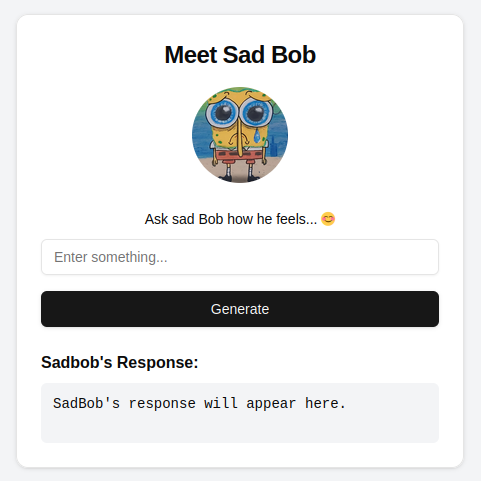
Following these steps, you’ve successfully set up a Next.js app with Google’s Gemini API to provide interactive responses using a custom persona.