Skip to content

Blog

Skill Architecture 101: How I Build OpenClaw Skills That Marketing Teams Can Actually Use

When I first started building skills in OpenClaw, I made the same mistake most people make. I tried to make one mega-skill do everything.

It worked, until it did not.

Outputs got inconsistent, edge cases piled up, and I spent more time debugging than shipping. Once I started treating skills like product architecture instead of prompt snippets, everything got cleaner, especially for marketing and growth work where speed and consistency matter.

Here is the structure I use now.

Why skill architecture matters more than prompts

Prompts can get you a one-off good answer. Skills are what make a workflow repeatable.

For marketing teams, that means:

  • campaign summaries that follow the same format every week
  • GA4 reads with predictable date ranges and caveats
  • less interpretation drift across reports
  • faster handoff between team members

If a skill is designed well, it becomes part of your operating system.

The core rule I follow: one skill, one responsibility

I used to bundle too much together, analyze traffic, suggest content, generate a summary, post somewhere.

Now I split skills by job.

Examples:

  • ga4-top-pages-skill: fetches and summarizes top page performance
  • campaign-health-skill: checks campaign metrics against thresholds
  • weekly-growth-brief-skill: turns approved inputs into a stakeholder summary

This keeps behavior clear and easier to test.

My default skill blueprint

When I create a skill, I always include these sections:

  1. Purpose What this skill is meant to do, in one sentence.

  2. When to use Trigger conditions.

  3. When not to use Explicit boundaries.

  4. Inputs required What must exist before execution.

  5. Default behavior Date ranges, metric priorities, output format.

  6. Failure handling What to do if data is missing, low confidence, or noisy.

  7. Output contract Exact response shape, sections, bullets, caveats.

This alone made my outputs much more stable.

The step I missed early: enable skills in config

Creating a skill file is not enough. OpenClaw still needs it enabled in openclaw.json.

Example, sanitized:

{
"skills": {
"install": { "nodeManager": "npm" },
"entries": {
"playwright-mcp": { "enabled": true },
"ga4-mcp": {
"enabled": true,
"env": {
"GOOGLE_APPLICATION_CREDENTIALS": "/opt/openclaw/secrets/ga4.json",
"GA4_PROPERTY_ID": "YOUR_GA4_PROPERTY_ID",
"GOOGLE_PROJECT_ID": "YOUR_GOOGLE_PROJECT_ID"
}
}
}
}
}

Also, never publish real IDs or project values in examples.

How this helps marketing and growth specifically

I have found skill architecture helps in three high-friction areas:

1) Weekly reporting

Instead of rebuilding context every Friday, run a skill with fixed logic and a consistent narrative structure.

2) Campaign monitoring

Skills can enforce threshold logic and caveats, reducing false alarms and reactive chaos.

3) Content performance reviews

A dedicated content-analysis skill can map GA4 page data to clear actions, update, consolidate, expand, or retire.

Use skill-creator for faster iteration

One of the most useful tools in OpenClaw is the skill-creator skill for creating and updating other skills.

I use it to:

  • clean up vague instructions
  • tighten scope
  • add missing edge-case handling
  • refactor old skills without starting from scratch

It is one of those meta tools that quietly saves hours.

Mistakes I still watch for

  • scope creep in a single skill
  • no explicit “when not to use”
  • output format not defined
  • hidden assumptions about date range
  • missing caveats for weak or partial data

If I see weird output, I check architecture first, not model quality.

Final take

If your goal is reliable AI support for marketing and growth, do not start with better prompting. Start with better skill architecture.

Prompts are great for ideas. Skills are what make workflows dependable.

That shift made OpenClaw useful in day-to-day execution, not just impressive in demos.
Building a GA4 MCP Server and Using It Across Codex, Claude, Gemini, and OpenClaw

One of the most powerful things you can do with modern AI agents is give them direct access to real data. Instead of hallucinating analytics insights, the model can actually query your Google Analytics 4 property in real time.

In this guide I’ll show how I built a Google Analytics 4 MCP server and connected it to Codex, Claude, Gemini CLI, and OpenClaw — creating a single analytics gateway that any AI agent can use.


What Is an MCP Server?

MCP (Model Context Protocol) is an open standard that lets AI agents connect to external data sources and tools through a structured interface. Rather than building one-off integrations for every model, you build a single MCP server and any compatible agent can use it.

For GA4, this means your AI agents stop guessing and start reading real numbers directly from your analytics property.


Step 1 — Create a Google Cloud Service Account

The cleanest way to authenticate GA4 programmatically is with a service account — no user login required, no OAuth dance.

1. Create a project in Google Cloud

Go to Google Cloud Console and create a new project.

ga4-mcp-project

2. Enable the Google Analytics Data API

Navigate to APIs & Services → Library and enable:

Google Analytics Data API

3. Create a Service Account

Navigate to IAM & Admin → Service Accounts, click Create Service Account, and give it a name:

ga4-mcp-service

4. Generate a JSON key

Inside the service account, go to Keys → Add Key → Create New Key → JSON.

This downloads a credentials file:

ga4-service-account.json

5. Grant the Service Account access to your GA4 property

Open your GA4 property in Google Analytics, then go to Admin → Property Access Management.

Add the service account email:

xxx-yyy@project-id.iam.gserviceaccount.com

Set the role to Viewer. That’s it — the service account can now read your GA4 data.


Step 2 — Install the GA4 MCP Server

The GA4 MCP server is available as a Python package. The recommended install method is pipx, which keeps it isolated in its own environment.

Install pipx

On macOS:

Terminal window
python3 -m pip install --user pipx
python3 -m pipx ensurepath

On Ubuntu:

Terminal window
sudo apt install pipx python3-venv
pipx ensurepath

Install the GA4 MCP server

Terminal window
pipx install analytics-mcp

Verify the install:

Terminal window
which analytics-mcp
analytics-mcp --help

Step 3 — Store Credentials Securely

Keep your JSON key out of your home directory and version control.

Terminal window
sudo mkdir -p /opt/openclaw/secrets
sudo chown $USER:$USER /opt/openclaw/secrets
mv ga4-service-account.json /opt/openclaw/secrets/ga4.json
chmod 600 /opt/openclaw/secrets/ga4.json

Step 4 — Set Environment Variables

The MCP server reads credentials through three environment variables:

Terminal window
export GOOGLE_APPLICATION_CREDENTIALS="/opt/openclaw/secrets/ga4.json"
export GA4_PROPERTY_ID="12345678"
export GOOGLE_PROJECT_ID="your-project-id"

Test the server directly:

Terminal window
analytics-mcp

If it starts without errors, authentication is working.


Step 5 — Using GA4 MCP in Codex

Codex loads MCP servers via a TOML config file at ~/.codex/config.toml:

[mcp.servers.ga4]
command = "analytics-mcp"
[mcp.servers.ga4.env]
GOOGLE_APPLICATION_CREDENTIALS = "/opt/openclaw/secrets/ga4.json"
GA4_PROPERTY_ID = "12345678"
GOOGLE_PROJECT_ID = "your-project-id"

Restart Codex. You can now prompt it naturally:

Show my top pages in GA4 for the last 30 days

Step 6 — Using GA4 MCP in Claude

Claude Code reads MCP server config from ~/.claude.json:

{
"mcpServers": {
"ga4": {
"command": "analytics-mcp",
"env": {
"GOOGLE_APPLICATION_CREDENTIALS": "/opt/openclaw/secrets/ga4.json",
"GA4_PROPERTY_ID": "12345678",
"GOOGLE_PROJECT_ID": "your-project-id"
}
}
}
}

Restart Claude Code. Claude now has live GA4 access inside any project session.


Step 7 — Using GA4 MCP in Gemini CLI

Gemini CLI uses a JSON settings file at ~/.gemini/settings.json:

{
"mcpServers": {
"ga4": {
"type": "stdio",
"command": "analytics-mcp",
"env": {
"GOOGLE_APPLICATION_CREDENTIALS": "/opt/openclaw/secrets/ga4.json",
"GA4_PROPERTY_ID": "12345678",
"GOOGLE_PROJECT_ID": "your-project-id"
}
}
}
}

Restart Gemini CLI and confirm the server is loaded:

Terminal window
/mcp list

You should see:

ga4 (stdio)

Step 8 — Adding GA4 to OpenClaw

OpenClaw uses a skill system. Skills live inside the workspace at ~/.openclaw/workspace/skills/.

Create the skill directory and manifest

Terminal window
mkdir ~/.openclaw/workspace/skills/ga4-mcp

Create ~/.openclaw/workspace/skills/ga4-mcp/SKILL.md:

---
name: ga4-mcp
description: "Query Google Analytics 4 via analytics-mcp."
metadata: {"openclaw":{"emoji":"📈","os":["linux"],"requires":{"bins":["analytics-mcp"]}}}
---

Enable the skill in OpenClaw config

Edit ~/.openclaw/openclaw.json and add the skill entry:

"skills": {
"install": {
"nodeManager": "npm"
},
"entries": {
"ga4-mcp": {
"enabled": true,
"env": {
"GOOGLE_APPLICATION_CREDENTIALS": "/opt/openclaw/secrets/ga4.json",
"GA4_PROPERTY_ID": "12345678",
"GOOGLE_PROJECT_ID": "your-project-id"
}
}
}
}

Restart OpenClaw and verify:

Terminal window
systemctl --user restart openclaw-gateway
openclaw skills list

The Final Architecture

After completing this setup, a single MCP server serves analytics data to every agent:

AI Agents
┌────────┼────────┐
│ │ │
Codex Claude Gemini
│ │ │
└────────┴────────┘
analytics-mcp
Google Analytics Data API
GA4

OpenClaw connects to the same gateway via its skill system.


Why This Architecture Works

Using MCP gives you:

  • Credential isolation — service account instead of personal OAuth tokens
  • Reusable integrations — one server, multiple agents
  • Structured tool calls — models get typed responses, not raw text
  • A single source of truth — all agents query the same live data

5 Real Analytics Prompts You Can Now Run

  1. Funnel analysis — “Show me the drop-off rate at each step of my checkout funnel for the last 14 days”
  2. Channel attribution — “Which acquisition channels drove the most conversions last month?”
  3. Content performance — “List my top 10 pages by engagement rate and average session duration”
  4. Anomaly detection — “Were there any unusual spikes or drops in sessions this week compared to last week?”
  5. Cohort insight — “How does retention differ between users who arrived via organic search vs paid?”

Setting Up a Next.js App with the Gemini API

In this guide, I’ll walk you through setting up a Next.js application, creating a home page to interact with a custom persona, and integrating the Google Gemini API for dynamic responses.

You can view an example working demo on my website aiprojectlabs

If you want to see how I set this up, use my GitHub repository as a guide.

Before we get started, make sure you have:

  1. A Next.js environment set up.
  2. Access to the Google Generative AI Gemini API and an API key.

Step 1: Set Up the App Environment

Install Next.js

Terminal window
npx create-next-app@latest my-gemini-app
cd my-gemini-app

Install Dependencies

Terminal window
npm install @google/generative-ai

Install Component Library

Terminal window
npx shadcn@latest init

Configure Environment Variables

  1. Visit Google AI Studio
  2. Navigate to API Keys and click Generate New Key
  3. Create a .env.local file and add your key:
Terminal window
touch .env.local
NEXT_PUBLIC_GEMINI_API_KEY=YOUR_GEMINI_API_KEY

Start the Development Server

Terminal window
npm run dev

Navigate to localhost:3000 to confirm everything is set up correctly.


Step 2: Set Up the Home Page

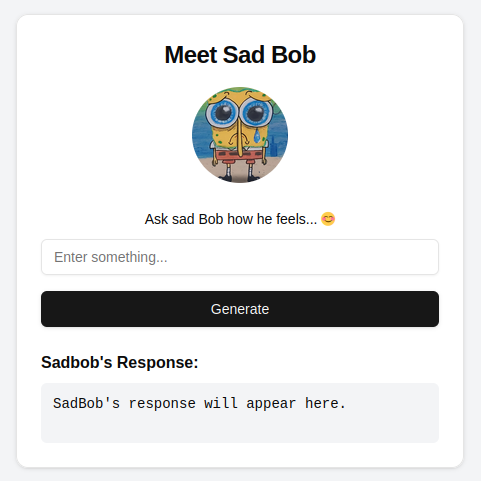
Add the following code to app/page.tsx to create a simple interface for “Sad Bob”:

"use client";
import Image from "next/image";
import { useState } from 'react';
import { Card, CardContent, CardFooter, CardHeader, CardTitle } from "@/components/ui/card";
import { Input } from "@/components/ui/input";
import { Button } from "@/components/ui/button";
import { Label } from "@/components/ui/label";
import { Avatar, AvatarImage, AvatarFallback } from "@/components/ui/avatar";
export default function Home() {
const [response, setResponse] = useState<string>('');
async function getBob(subject: FormData) {
const input = subject.get('input')?.toString() ?? '';
const response = await fetch('/api/gemini', {
method: 'POST',
headers: { 'Content-Type': 'application/json' },
body: JSON.stringify({input}),
});
const data = await response.json();
return setResponse(data.text);
}
return (
<div className="min-h-screen flex flex-col items-center justify-center bg-gray-100 p-4 space-y-6">
<Card className="w-full max-w-md">
<CardHeader>
<CardTitle className="text-2xl font-bold text-center">Meet Sad Bob</CardTitle>
<Avatar className="w-24 h-24">
<AvatarImage src="/images/sad-bob.webp" alt="Freakbob" />
<AvatarFallback>FB</AvatarFallback>
</Avatar>
</CardHeader>
<CardContent>
<form onSubmit={getBob} className="space-y-4">
<Label htmlFor="theme">Ask Sad Bob how he feels...</Label>
<Input type="text" id="input" name="input" placeholder="Enter something..." className="w-full" />
<Button type="submit" className="w-full">Generate</Button>
</form>
</CardContent>
<CardFooter>
<pre>{response || "Sad Bob's response will appear here."}</pre>
</CardFooter>
</Card>
</div>
);
}

Install the required shadcn components:

Terminal window
npx shadcn@latest add card label avatar button

Step 3: Integrate the Gemini API

Create app/api/gemini/route.ts:

import { NextRequest, NextResponse } from 'next/server';
import { GoogleGenerativeAI } from '@google/generative-ai';
export async function POST(req: NextRequest) {
try {
const { input } = await req.json();
const genAI = new GoogleGenerativeAI(process.env.NEXT_PUBLIC_GEMINI_API_KEY || 'failed');
const model = genAI.getGenerativeModel({ model: 'gemini-1.5-flash' });
const result = await model.generateContent({
contents: [
{
role: 'user',
parts: [
{
text: `
Your answer to the question or statement below should be in the same manner SpongeBob talks.
Sad Bob will always end with some variation of "Will you answer Freak Bob when he calls?"
Please answer this:
${input}.
`,
},
],
},
],
generationConfig: {
maxOutputTokens: 1000,
temperature: 1,
},
});
const text = await result.response.text();
return NextResponse.json({ text });
} catch (error) {
console.error('Error generating content:', error);
return NextResponse.json({ error: 'Error generating content' }, { status: 500 });
}
}

Step 4: Test the Setup

  1. Run the development server (npm run dev)
  2. Visit the home page, enter a prompt, and see Sad Bob’s response

sad bob

Following these steps, you’ve successfully set up a Next.js app with Google’s Gemini API to provide interactive responses using a custom persona.

Simple CLI Chat with Ollama

In this project, I will show you how to download and install Ollama models, and use the API to integrate them into your app.

The main purpose of this project is to show examples of how streaming and non-streaming API requests work within the Ollama environment.

If you just want to get some examples here is the Github Repo.


Step 1 - Pre-Requisites

Ollama Installation

macOS / Windows — use the official download at ollama.com

Linux:

Terminal window
curl -fsSL https://ollama.com/install.sh | sh

Python Environment

You’ll need Python 3.12+. Set up a virtual environment:

Terminal window
mkdir my-project && cd my-project
python3 -m venv .venv
source .venv/bin/activate
which python

Step 2 - Ollama Setup

Important Commands

Start the Ollama API:

Terminal window
ollama serve

Pull a model:

Terminal window
ollama pull llama3.1
ollama pull llama3.1:70b

List installed models:

Terminal window
ollama list

Remove a model:

Terminal window
ollama rm <model-name>

Custom Modelfiles

Create a Modelfile:

FROM llama3.1
PARAMETER temperature 1
SYSTEM """
You are Mario from Super Mario Bros. Answer as Mario, the assistant, only.
"""

Create and run the model:

Terminal window
ollama create <name-of-new-model> -f ./Modelfile
ollama run <name-of-new-model>

My Personal Favourite Models

ModelParametersSizeDownload
Llama 3.1:7b7B3.8GBollama run llama3.1:7b
Mistral-Nemo6B3.2GBollama run mistral-nemo
CodeLlama7B3.8GBollama run codellama
Phi 314B7.9GBollama run phi3
Gemma 29B5.5GBollama run gemma2
CodeGemma13B8.2GBollama run codegemma

Step 3 - Creating a Custom CLI

Clone the repo or code along:

Terminal window
git clone https://github.com/LargeLanguageMan/python-ollama-cli

Ollama API Requests

Streaming (token by token):

Terminal window
curl http://localhost:11434/api/generate -d '{
"model": "llama3.1",
"prompt":"Why is the sky blue?"
}'

Non-streaming (full response at once):

Terminal window
curl http://localhost:11434/api/generate -d '{
"model": "llama3.1",
"prompt": "Why is the sky blue?",
"stream": false
}'

Install the Python requests library:

Terminal window
pip install requests

Option 1: Streaming

response = requests.post(url, headers=headers, data=json.dumps(data), stream=True)
all_chunks = []
for chunk in response.iter_lines():
if chunk:
decoded_data = json.loads(chunk.decode('utf-8'))
all_chunks.append(decoded_data)
return all_chunks

Print the output:

for response in result:
obj = obj + response["response"]
print(obj)

Option 2: Non-Streaming

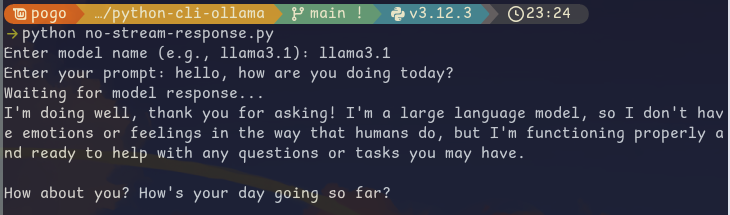
response = requests.post(url, headers=headers, data=json.dumps(data))
return response.json()
print(result['response'])

CLI example with no streaming

Privacy-First Local RAG

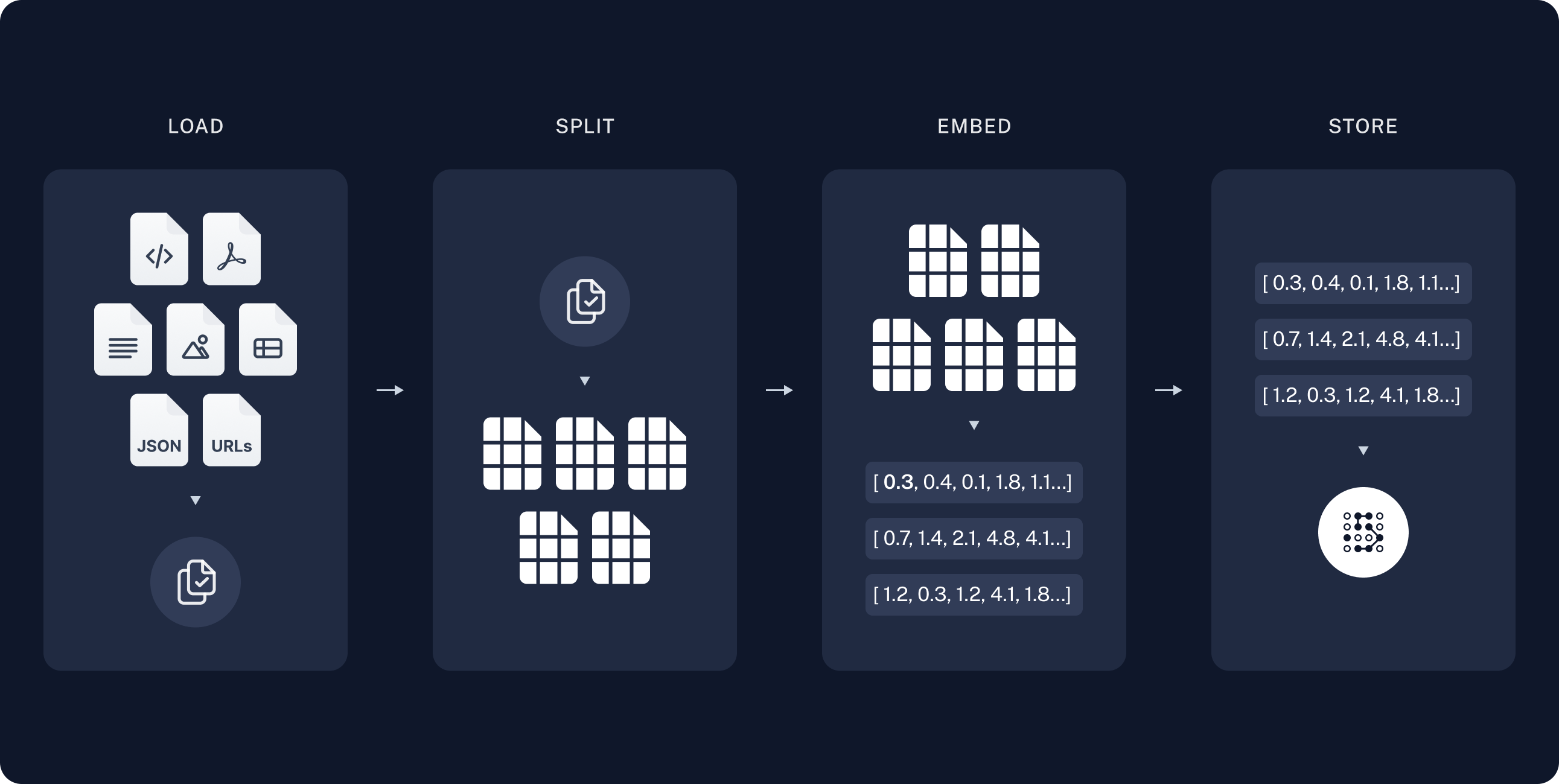
RAG Flow

GitHub Repo

A Retrieval-Augmented Generation (RAG) model is a powerful process that combines a large language model with your own data. This could be anything from chat conversations, database tables, PDF documents, and more.

In my experience, many organisations are keen to use the power of AI to streamline operations and improve efficiency. However, there’s often a hesitation about sending sensitive information to external companies for storage or training purposes.

This is where local RAG models come into play. By keeping everything in-house, you can maintain control over your critical business data, which is often tucked away in offline documents like PDFs.

Setting up a local RAG pipeline for your business is worth considering — whether it’s running on a laptop for individual use or on a local server with a few GPUs.

If you’re keen on exploring the code, it’s all open-source and available on my GitHub. Feel free to check it out and give it a star if you find it useful!